How to Resolve Microphone Detection Problems on Windows 10 and 11?
By Jon | 3 January, 2026
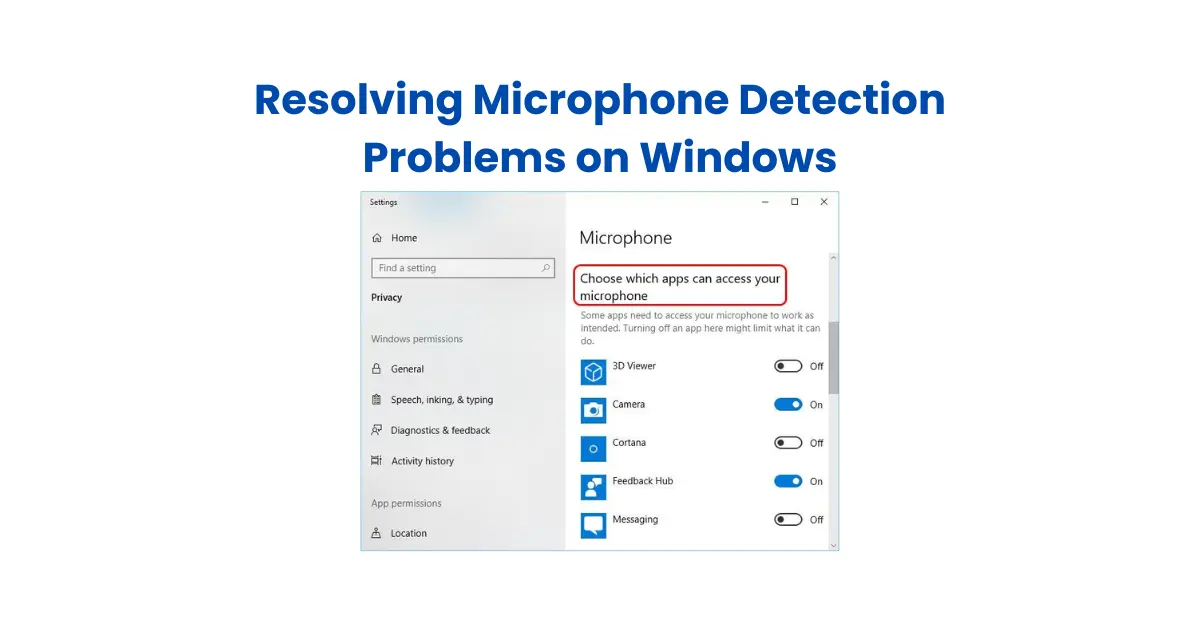
Table of Contents
Resolving Microphone Detection Problems in Windows 10 and 11
Are you struggling with your microphone not working on Windows 10 or 11? Whether your mic is not working, microphone not detected, or you are having trouble on Teams, this guide will help you fix every issue. From resolving microphone detection problems to checking mic drivers and privacy settings, we’ll cover everything step by step.
1. Check if Your Computer Has a Microphone
Go to Settings → System → Sound → Input and see if your microphone is listed. If it says No microphone found or you’re wondering is there a microphone on this computer, check your hardware connections or try another port.
2. Enable Microphone Access in Privacy Settings
Windows may block apps from using the mic by default. To fix this:
- Open Settings → Privacy & Security → Microphone.
- Turn Microphone access ON.
- Allow the apps you want, including Teams and Zoom, to access your microphone.
This solves problems like microphone muted by system settings and apps not detecting your mic.
Important: After enabling microphone access or changing mic privacy settings, always verify whether your microphone is actually working. You can quickly test your mic in real time using mic test, a free online microphone testing tool that works on Windows 10, Windows 11, and all major browsers without installing anything.
3. Update or Reinstall Mic Drivers
Driver issues often cause mic problems. To fix mic drivers issues:
- Press Windows + X → Device Manager.
- Expand Audio inputs and outputs, right-click your mic, and select Update driver.
- If that doesn’t help, uninstall the driver and restart your PC. Windows will reinstall it automatically.
Dell users may need to download drivers from Dell’s website for resolving microphone detection problems Dell laptops.
4. Check Sound Settings
Sometimes your mic is detected but not working:
- Go to Settings → System → Sound → Input.
- Select your microphone and click Device Properties.
- Check the volume and test your mic.
This fixes many no microphone found or microphone not working Teams problems.
5. Fix Mic Issues in Teams
- Open Teams → Settings → Devices.
- Select the correct microphone and test it.
- Restart Teams after changing settings.
Teams also needs permission in Windows privacy settings, so make sure Step 2 is completed.
6. Use Windows Troubleshooter
- Go to Settings → System → Troubleshoot → Other troubleshooters.
- Click Recording Audio → Run and follow instructions.
This helps with troubleshooting microphone detection automatically.
7. Advanced Checks
- Ensure your microphone is properly connected.
- Disable exclusive mode: Control Panel → Sound → Recording → Microphone → Properties → Advanced → Uncheck “Allow applications to take exclusive control”.
- Check Microsoft official updates.
- For Dell or other branded laptops, updating BIOS/firmware can sometimes help.
By following these steps, you can fix almost any microphone issue on Windows 10 or 11, including microphone not working Teams, resolving microphone detection problems, and mic drivers issues. Your microphone should now work smoothly across all apps and platforms.
8. Test Your Microphone
- Open the Voice Recorder app.
- Click Record and speak into your mic.
- Playback to confirm it works.
For an online mic test, visit microphone test to ensure your microphone works perfectly.
Frequently Asked Questions
Why is my microphone not detected on Windows 10 or 11?
This usually happens due to disabled microphone privacy settings, outdated mic drivers, or a loose hardware connection. Always check Sound settings and Privacy permissions first.
How do I fix microphone privacy settings on Windows?
Go to Settings → Privacy & Security → Microphone, turn ON microphone access, and allow apps and desktop apps to use your microphone.
Why does my mic show “No microphone found”?
This means Windows cannot detect any microphone. It may be caused by missing drivers, a disabled device, faulty ports, or hardware issues.
Is there a microphone on this computer?
Open Settings → System → Sound → Input. If no microphone appears, your system may not have a built-in mic or it is disabled.
Why is my mic muted by system settings?
Windows may mute your microphone due to privacy restrictions or sound level settings. Check Sound → Recording → Microphone → Levels and unmute it.
How to fix microphone settings if my mic is not working?
Make sure your microphone is selected as the default input device, volume is turned up, privacy access is enabled, and mic drivers are updated.
Why is my microphone not working on Teams?
Teams may be using the wrong microphone or does not have permission. Check Teams Settings → Devices and Windows microphone privacy settings.
Why does my mic work in one app but not another?
The app may not have microphone permission. Check Windows privacy settings and enable mic access for that specific app.
How do I update mic drivers on Windows?
Open Device Manager → Audio inputs and outputs → Right-click your microphone → Update driver. Restart after updating.
How to resolve microphone detection problems on Dell laptops?
Download official audio drivers from Dell’s support website. Updating BIOS or firmware can also fix microphone detection issues.
Why did my microphone stop working after a Windows update?
Windows updates can reset privacy permissions or drivers. Recheck microphone settings and reinstall mic drivers if needed.
How does Windows Troubleshooter help with microphone problems?
It automatically checks for driver issues, disabled devices, and incorrect sound settings to fix microphone detection problems.
What is the purpose of resolving microphone detection problems?
The purpose is to ensure smooth communication during calls, meetings, recordings, and online classes without audio issues.
How can I test if my microphone is working properly?
Use the Windows Voice Recorder app or test your mic online using tools like mictest.pro for real-time microphone testing.