How to Fix Issues When Troubleshooting Microphone Privacy Settings on Windows 10/11?
By Jon | 3 January, 2026
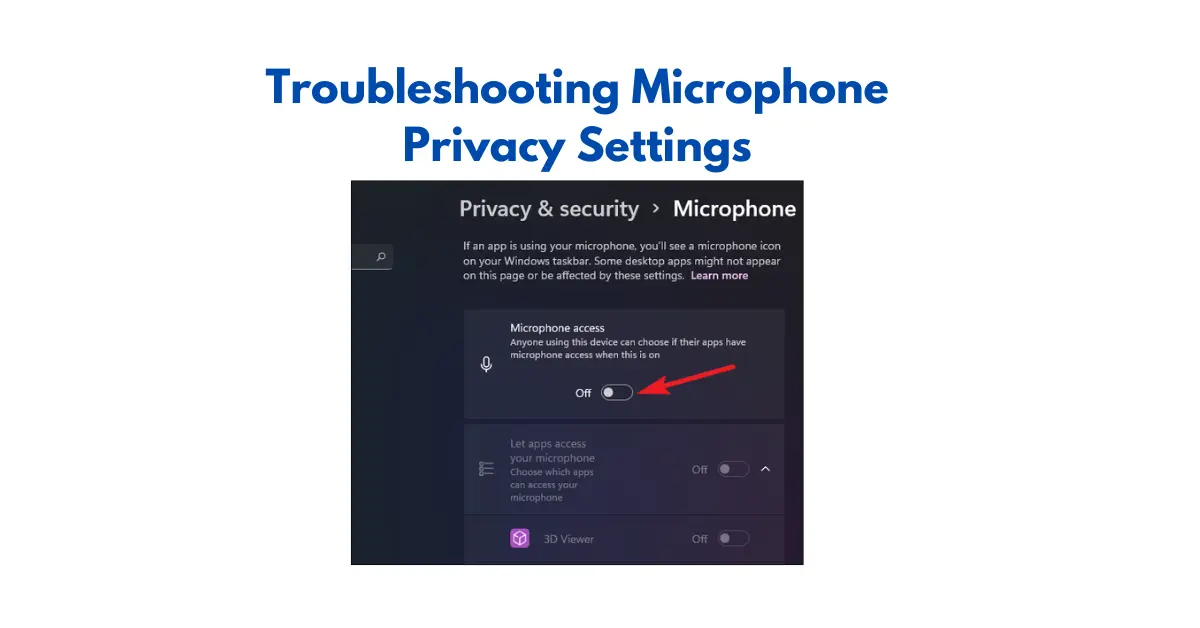
Table of Contents
Are you struggling with your microphone on Windows 10 or 11? Maybe your mic isn’t being detected, or some apps aren’t allowed to use your microphone. Don’t worry — in this guide, we’ll cover everything you need to know about troubleshooting microphone privacy settings and fixing common microphone problems.
1. Check Your Microphone Connection
The first thing you should do is ensure your microphone is properly connected:
- If you’re using a headset or external mic, make sure it’s plugged in correctly.
- For USB microphones, try a different USB port.
- If it’s a headset, check that it’s not muted on the device itself.
Pro Tip: You can also visit mic test to test your microphone online in real time and get instant solutions for Windows 10 and 11.
Sometimes, a simple connection check fixes your headset microphone not working issue.
2. Allow Apps to Use Your Microphone
One of the most common reasons for a microphone off issue is that your apps don’t have permission to access it:
- Press Windows + I to open Settings.
- Go to Privacy & Security > Microphone (or type ms-settings:privacy-microphone in the Run box).
- Make sure Microphone access is turned ON.
- Under Let apps access your microphone, toggle ON the apps you want to use your mic.
- Scroll down to Let desktop apps access your microphone and enable it.
This solves the issue of apps not being allowed to use microphone or allowed to use your microphone.
3. Fix Microphone Muted by System Settings
Sometimes, your mic might be muted in Windows settings, even if it’s physically connected:
- Right-click the Speaker icon in the taskbar and select Sounds.
- Go to the Recording tab.
- Check if your microphone shows Muted. If yes, right-click and select Enable.
- Also, adjust the Levels to make sure it’s not at zero.
This often resolves problems like mic is not working or headset microphone not working.
4. Update Your Microphone Drivers
- Press Windows + X and select Device Manager.
- Expand Audio inputs and outputs.
- Right-click your microphone and select Update driver.
- Choose Search automatically for drivers.
- Restart your computer after the update.
This step is crucial if you want to fix my microphone or resolve troubleshooting microphone detection problemsmicrosoft.com related issues.
5. Run Windows Troubleshooter
- Go to Settings > System > Troubleshoot > Other troubleshooters.
- Find Recording Audio and click Run.
- Follow the instructions and apply any recommended fixes.
This tool can help when you how to fix microphone settings or how to fix microphone not detected problems.
6. Check Your Audio Privacy Settings
- Open Settings > Privacy & Security > Microphone.
- Make sure Allow apps to access your microphone is ON.
- Scroll down and check that desktop apps are also allowed.
This is your main privacy microphone settings section to control which apps can use your mic.
7. Test Your Microphone
- Open the Voice Recorder app.
- Click the Record button and speak into your mic.
- Playback to see if your voice is being recorded.
If this works, your microphone is now fully functional.
8. Additional Tips
- Restart your computer after making changes.
- Try a different app to see if the problem is app-specific.
- If nothing works, consider replacing your microphone as hardware issues can also cause no microphone found errors.
Frequently Asked Question
Why are some apps not allowed to use my microphone?
If certain apps cannot access your mic, it’s likely due to Windows privacy settings. Go to Settings → Privacy → Microphone (or type ms-settings:privacy-microphone), and make sure “Let apps access your microphone” is turned ON. Scroll down to toggle access for specific apps.
How can I turn my microphone on if it’s off?
Press Windows + I, navigate to Privacy → Microphone, and ensure Microphone access is ON. Also, check that the apps you want are allowed to use it. Sometimes the mic may be disabled in the Sound settings → Recording tab, so enable it there too.
Why is my microphone muted by system settings?
Your mic may appear connected but still be muted in Windows. Right-click the speaker icon → Sounds → Recording tab, select your mic → Properties → Levels, and make sure it’s not muted and volume is sufficient.
How to resolve microphone detection problems as suggested on Microsoft.com?
Microsoft recommends updating your audio drivers, checking privacy settings, and running the Windows Troubleshooter. Go to Settings → System → Sound → Troubleshoot and follow the prompts to resolve common detection issues.
What to do if my mic is not working?
If your mic is not working, check the connection and cables, enable microphone access in privacy settings, update the driver, and test in another app. If it still doesn’t work, hardware issues may be the cause.
Why do I get “No microphone found”?
“No microphone found” usually means Windows cannot detect your mic. Check connection, update drivers in Device Manager → Audio inputs and outputs, ensure privacy settings allow access, or try another port/device to rule out hardware issues.
How to fix microphone settings on Windows 10/11?
Go to Settings → Privacy → Microphone to allow apps and desktop access. Then check Sound settings → Input → Choose your device, adjust volume, and test. Restart if needed.
What does ms-settings:privacy-microphone do?
Typing ms-settings:privacy-microphone in the Run box opens the microphone privacy settings directly. You can allow apps and desktop apps to access your microphone from here.
How can I allow apps to use my microphone?
Open Settings → Privacy → Microphone, toggle “Let apps access your microphone” ON. Scroll to individual apps and toggle access. For desktop apps, enable “Let desktop apps access your microphone”.
How do I fix a microphone that is not detected?
Check physical connections, update or reinstall the microphone driver, run the Windows Troubleshooter, ensure privacy settings allow apps to use it, and restart your PC.
What are privacy microphone settings?
Privacy microphone settings control which apps can access your microphone. You can allow or block Microsoft Store apps and desktop apps to protect your privacy while letting trusted apps record audio.
How to let desktop apps access your microphone?
Go to Settings → Privacy → Microphone → Let desktop apps access your microphone and toggle it ON. This allows apps like Zoom, Teams, and Skype to detect your mic.
How to change audio privacy settings for Windows 10/11?
Open Settings → Privacy → Microphone. Turn ON microphone access, allow apps, and desktop apps. Adjust permissions for individual apps to ensure proper audio functionality.
What to do if my headset microphone is not working?
Check if the headset is connected properly, selected as default device in Sound settings → Input, update drivers, and test on another device to rule out hardware issues.
How can I update my microphone driver?
Press Windows + X → Device Manager → Audio inputs and outputs → Right-click your mic → Update driver → Search automatically. Restart your PC after updating. This resolves most issues like mic not working or not detected.