How to Enable Microphone for Specific Apps on Windows 10 and 11?
By Jon | 3 January, 2026
If you’re struggling with your microphone not working in certain apps, you’re not alone. Many Windows users face issues where their microphone works in some apps but not others. The good news is that Windows 10 and 11 give you control over which apps can access your microphone. In this guide, we’ll show you how to enable microphone for specific apps and fix common microphone problems.
1. Why Some Apps Can’t Access Your Microphone
Sometimes, even if your microphone works perfectly, certain apps may not be able to use it. This usually happens because of mic privacy settings in Windows. These settings let you control which apps have microphone access, so you can protect your privacy while still allowing apps you trust to use the mic.
2. Check General Microphone Access
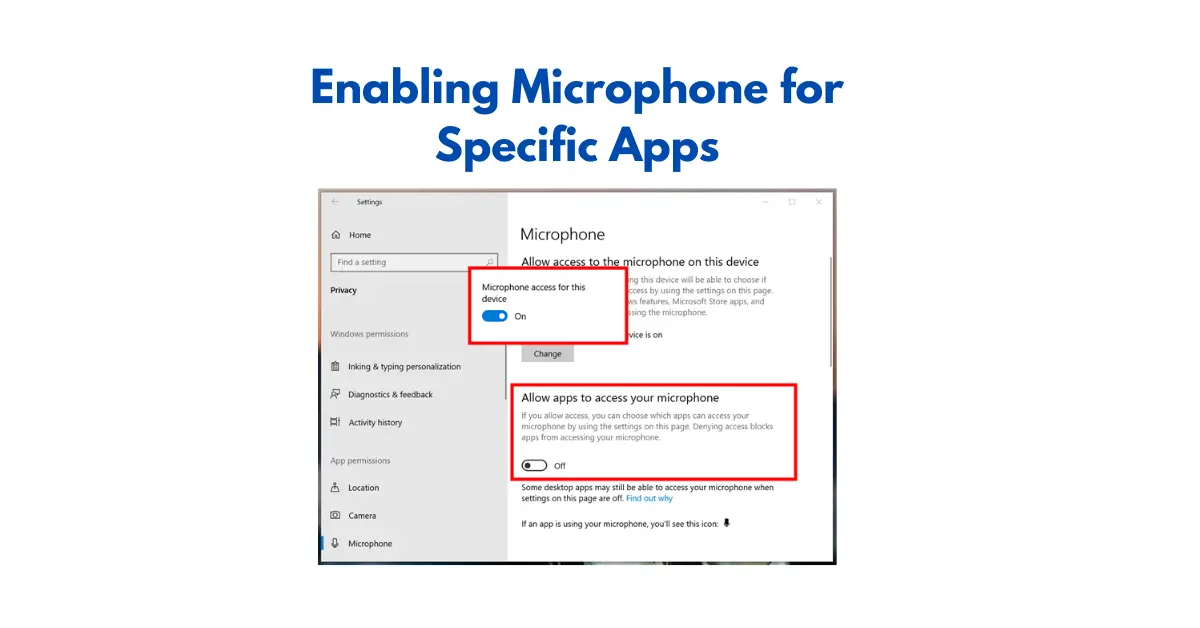
Before enabling the microphone for individual apps, make sure that Windows allows desktop apps to access microphone:
- Press Windows + I to open Settings.
- Go to Privacy & security > Microphone (Windows 11) or Privacy > Microphone (Windows 10).
- Make sure Microphone access is On.
- Also, enable Let apps access your microphone.
⚠️ Tip: If this is off, no apps can use your microphone, even if their individual mic settings are turned on.
3. Enable Microphone for Specific Apps
- Open Settings > Privacy & security > Microphone.
- Scroll down to Choose which Microsoft Store apps can access your microphone.
- Toggle the switch On for the apps you want to allow microphone access.
- For desktop apps, ensure Allow desktop apps to access your microphone is On.
Important: After enabling microphone access or changing mic privacy settings, always verify whether your microphone is actually working. You can quickly test your mic in real time using mic test, a free online microphone testing tool that works on Windows 10, Windows 11, and all major browsers without installing anything.
💡 This is the mic access setting that often fixes apps like Zoom, Skype, or Teams not detecting your mic.
4. Test Your Microphone
- Go to Settings > System > Sound.
- Under Input, select your microphone.
- Speak into the mic and check if the Test your microphone bar moves.
🔧 If your mic is still not working, continue to the troubleshooting steps below.
5. Troubleshooting Microphone Privacy Settings
- Update your audio drivers: Outdated drivers can cause microphone issues.
- Check app-specific settings: Some apps have their own mic controls. Make sure the mic is selected in the app itself.
- Restart your computer: Simple but effective.
- Use Windows Troubleshooter: Go to Settings > System > Sound > Troubleshoot to automatically detect mic issues.
- Reset privacy settings: If nothing works, go to Settings > Privacy > Microphone and toggle access off and on again.
6. Tips for Better Microphone Performance
- Make sure your microphone is connected properly.
- Reduce background noise for clearer input.
- Avoid using multiple audio devices at the same time.
- Keep Windows updated to avoid mic privacy settings bugs.
Frequently Asked Questions
How to enabling microphone for specific apps on Windows 10/11?
Go to Settings > Privacy & Security > Microphone, then toggle On the apps you want to allow microphone access.
Why is my microphone not working in one app but works in others?
Most likely, the app doesn’t have permission. Check mic privacy settings and app-specific settings to ensure it has access.
How can I allow desktop apps to access microphone?
In Microphone privacy settings, turn on Allow desktop apps to access microphone. This is required for apps like Zoom, Teams, or Skype.
How do I check if my microphone is working?
Go to Settings > System > Sound > Input, select your microphone, and speak. The Test your microphone bar should move.
What if Windows is blocking my microphone?
Windows can block access due to privacy settings. Open Settings > Privacy & Security > Microphone and make sure access is enabled.
Can I block microphone access for certain apps?
Yes. In Settings > Privacy > Microphone, toggle off apps you don’t want to use the microphone.
How do I fix microphone issues in Windows 10/11?
Check privacy settings, enable desktop apps mic access, update audio drivers, use Windows Troubleshooter, and restart your computer.
How do I test my microphone online?
Use free tools like MicTest.pro or OnlineMicTest.com to see if your mic works live.
How do I set a default microphone in Windows?
Go to Settings > System > Sound > Input, select your mic, then click Set as Default.
Can antivirus software block microphone access?
Yes, some antivirus or firewall apps may prevent microphone access. Temporarily disable them and test your mic.
How do I troubleshoot microphone privacy settings?
Use the Windows Audio Troubleshooter, reset mic permissions, or toggle Allow apps to access microphone off and on again.
Why does my microphone work in hardware tests but not apps?
This often means the app is not allowed in mic privacy settings or the wrong input device is selected in the app.
How do I enable microphone for Microsoft Store apps?
Open Settings > Privacy > Microphone, scroll down, and toggle On the apps you want to allow.
Can I allow mic access for apps installed outside Microsoft Store?
Yes, ensure Allow desktop apps to access microphone is On. Desktop apps require this setting to access your mic.